








Jira Comment Permissions: How to Control Who Sees What
Jira comment permissions come in two separate layers, and confusing them is the source of most of the confusion around this topic.
- Layer one: who can comment at all. Governed by the project permission scheme.
- Layer two: who can see a specific comment. Governed per comment, by the person writing it.
They are configured in different places by different people, and only one of them has a default you can control. That last point is the gap this article is really about.
Layer one: the permission scheme
Four entries in the project permission scheme govern comments:
- Add Comments controls who can write a comment at all.
- Edit Own Comments controls who can change their own.
- Edit All Comments controls who can change anyone’s.
- Delete Own Comments and Delete All Comments do the same for removal.
An administrator finds these under Project settings then Permissions.
”Permission comment denied”
This message means one of two things:
- You lack Add Comments in that project’s permission scheme. Most common on Jira Service Management projects, where customers and agents sit in different permission sets.
- You are editing someone else’s comment without Edit All Comments.
The fix is a permission scheme change, which needs a project or Jira administrator. If you administer the project yourself, add the relevant group or project role to the permission and re-test with an affected account rather than your own admin account, since admin permissions often mask the problem.
Layer two: comment visibility restrictions
Separately from who can comment, each individual comment can be restricted to a specific audience.
When writing a comment, use the padlock (or visibility selector) in the editor before saving, and choose a project role or group. Once saved, only the comment author and members of that role or group can see it. Everyone else sees the item with that comment simply absent.
A few properties worth knowing:
- It is per comment. There is no way to restrict a thread, a section, or an item’s comments as a whole.
- It must be set before saving, every single time.
- Restricting to a role is usually safer than a group. Roles are per project, so “Administrators” means that project’s administrators rather than a global list that may have grown.
- On Data Center, a global setting under General Configuration controls whether users can restrict to both groups and project roles, or to project roles only. Locking it to roles only is a reasonable hardening step.
The gap: restricted is never the default
Here is what Atlassian’s documentation covers thoroughly and what it does not.
It covers how to restrict a comment. The padlock, the roles, the groups. That mechanism works well.
It does not solve the actual failure mode, which is that every new comment starts out visible to everyone who can see the item, and staying safe depends on a human remembering to click the padlock every time.
That is a bad bet, and for predictable reasons:
- People paste customer details into a support ticket while moving fast.
- An internal note about a colleague’s performance gets added to an HR item that a wider group can see.
- Someone comments pricing or contract detail on a request that the customer can read in the portal.
- A JSM agent writes what they think is an internal note and it reaches the customer.
None of these are permission scheme failures. Every one is a case where the permission model worked exactly as configured and the default was wrong.
Native Jira has no setting to change that default. There is no “new comments in this project start restricted” option. This is the specific gap that sends people looking, and it is why the answer to “how do I make comments private by default in Jira” is that you cannot, natively.
Closing the gap
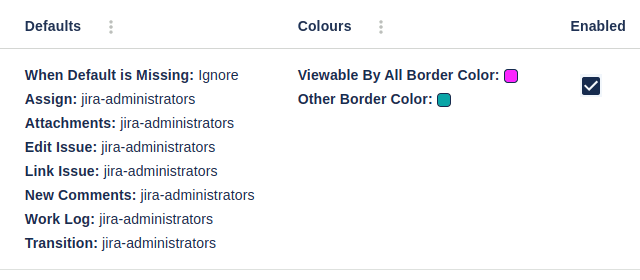
Comment Security Default exists for this. It sets the default visibility level for new comments so the safe option is applied automatically, while users can still raise visibility deliberately when a comment should be public.
On Jira Cloud it works per space, per user group, or globally. Configurations are evaluated space-first, then global, and within a scope the first matching rule wins. There is a toggle for applying defaults inside Jira Service Management and Customer Service Management spaces, on by default. Transition Defaults cover the comment boxes that appear on workflow transition screens, which are easy to forget and are exactly where someone types quickly.
One implementation detail worth knowing before you evaluate it: the Cloud version needs a Chrome extension alongside the app. Atlassian’s Forge platform does not let an app set the default value in the native comment editor directly, so the extension applies the published configuration in the browser. Without it the configuration is saved but new comments fall back to standard Jira behavior. This is a genuine setup step rather than an optional extra.
The Data Center version does not need an extension and covers more ground, including attachments.
What comment restrictions do not cover
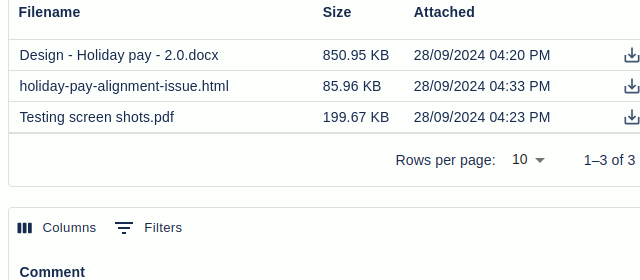
Attachments. Restricting a comment hides the comment text. Any file attached to the issue or work item stays visible to everyone who can see the item, because Jira has no per-attachment permission. If the sensitive content is a file rather than a sentence, comment restrictions are the wrong tool. See Jira attachment permissions for that side of it.
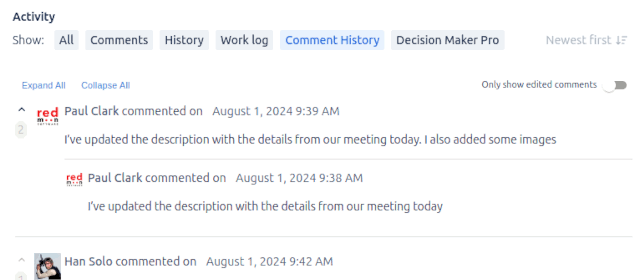
History. If a comment is edited or deleted, native Jira gives you very little. An “edited” marker exists, deleted comment content is generally unrecoverable through the standard view, and neither is a durable audit trail. That is covered in how to see who changed or deleted a Jira comment.
Quick reference
| What you want | Native Jira | Where |
|---|---|---|
| Control who can comment | Yes | Permission scheme, Add Comments |
| Control who can edit or delete | Yes | Permission scheme |
| Restrict one comment to a group | Yes | Padlock in the comment editor |
| Restrict to roles only, site-wide | Yes, Data Center | General Configuration |
| Make restricted the default | No | Requires an app |
| Restrict attachments | No | No per-attachment model exists |
| Full comment edit history | No | Requires an app |
Frequently asked questions
Which Jira permissions control comments? Four in the project permission scheme: Add Comments, Edit Own Comments, Edit All Comments, and Delete Own or Delete All Comments. Separately, comment visibility is set per comment using the padlock control, which restricts a comment to a chosen project role or group.
Why do I see “permission comment denied” in Jira? Your account is missing the Add Comments permission in that project’s permission scheme, or you are trying to edit someone else’s comment without the Edit All Comments permission. An administrator can check under Project settings, Permissions.
How do I restrict a Jira comment to a group? Use the padlock or visibility control in the comment editor before you save, and pick a project role or group. Only the comment author and members of that role or group will see it. The restriction is per comment and must be set every time.
Can I make restricted the default for new comments? Not in native Jira. Every new comment defaults to visible to all users who can see the item, and the person writing it has to remember to change that. Closing that gap is what an app such as Comment Security Default does, by setting the default visibility per space, per group, or globally.
Do comment restrictions hide attachments too? No. A comment restriction hides the comment text only. Files attached to the issue or work item stay visible to everyone who can see the item, because Jira has no per-attachment permission model.
See also: How to restrict Jira comments and secure admin access · Jira attachment permissions · Comment and Permission scheme in the Jira glossary.