Specify your own defaults for comments when adding a comment, a new attachment, logging work, linking work or editing an issue or transitioning an issue.
Set defaults as either project roles or user groups
Define default settings at the global and/or at the project level.
Specify the color of a comment field when restricted to either “Viewable to all users” or to all other restriction levels
FULL support for Service Desk and Jira Agile
The Comment Security Default plugin does not work on JIRA mobile.
New Features
As of version 5.0.0, the plugin now supports multiple configurations at the global and project level. You can specify multiple configurations that only apply to users of specific groups as well as a default configuration
As of version 3.0.0, the plugin now supports using groups as defaults, previously it was only for project roles.
Service Desk users can specify to always show the customer tab. Any defaults are still automatically selected if they change to the internal tab.
Global Settings
The defaults for comment security can be set globally, for all projects in Jira, or per project. The configuration that is used for an issue uses the following logic
If there are project configurations then
For each configuration in the project where Groups is not Default (from top to bottom)
If the user belongs to one of the Groups specified then
Use this configuration
If there is a Default configuration, without any user groups then
Use this configuration
If there are global configurations then
For each global configuration where Groups is not Default (from top to bottom)
If the user belongs to one of the Groups specified then
Use this configuration
If there is a Default configuration, without any user groups then
Use this configuration
Setting the configuration globally is optional. The defaults can also be set on a per-project basis (see Project Settings below)
Important: If you are wanting to use user groups in comment security then this needs to be enabled within Jira. To enable it you need to go to System -> General Configuration, click edit settings, go to “Comment Visibility” and select “Groups & Projects”
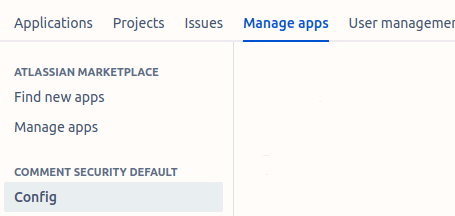
The global configuration can be found by going to the admin section Manage Apps -> Comment Security Default -> Config
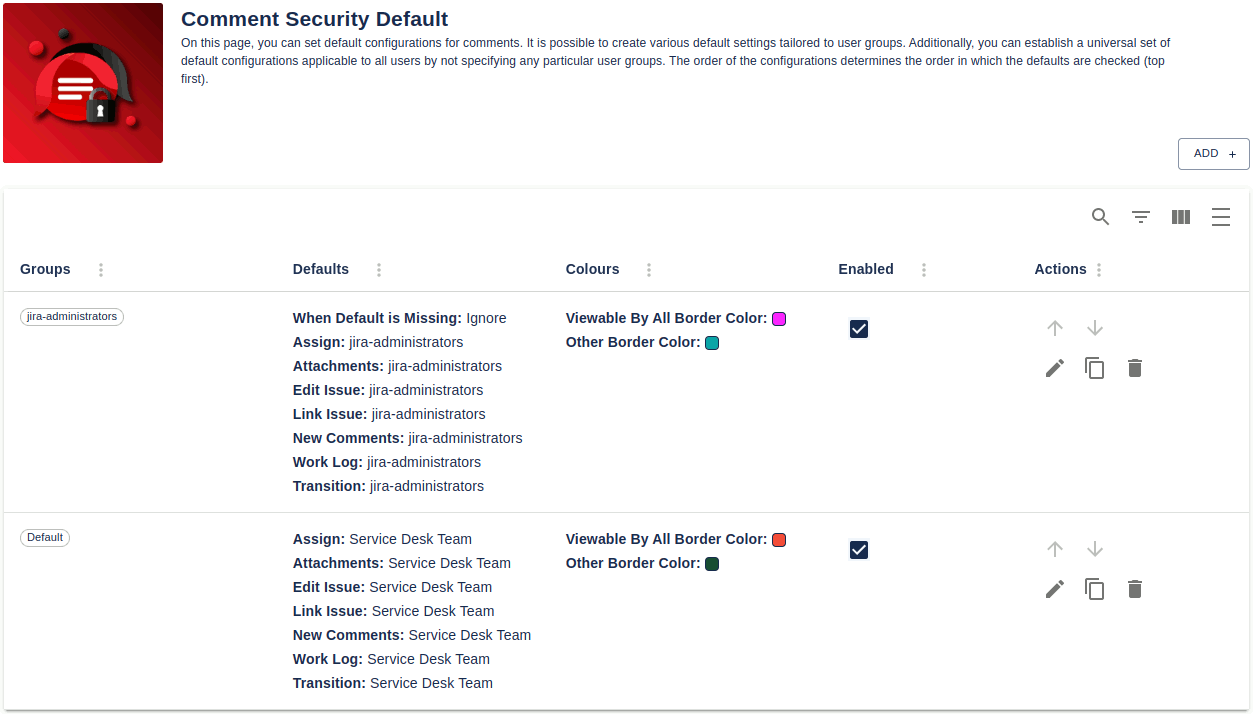
The global configuration page looks like the example shown below. There are two different types of configuration: ones that are only valid for one or more user groups and a default configuration. You can have as many configurations as you like as long as there is a maximum of one default configuration.
In the example above there are two configurations, one for users in the jira-adminstrators user group and a default configuration, to cater for everyone else. The list’s order indicates the order in which the configurations will be checked (starting from the top and moving towards the bottom). There are icon buttons on the right-hand side to move the configuration up or down in the list, although the default configuration is always last.
Click on the Add button to add a new configuration and click on the pencil icon to edit an existing configuration. There are also icon buttons to duplicate or delete a configuration
Add / Edit Configuration
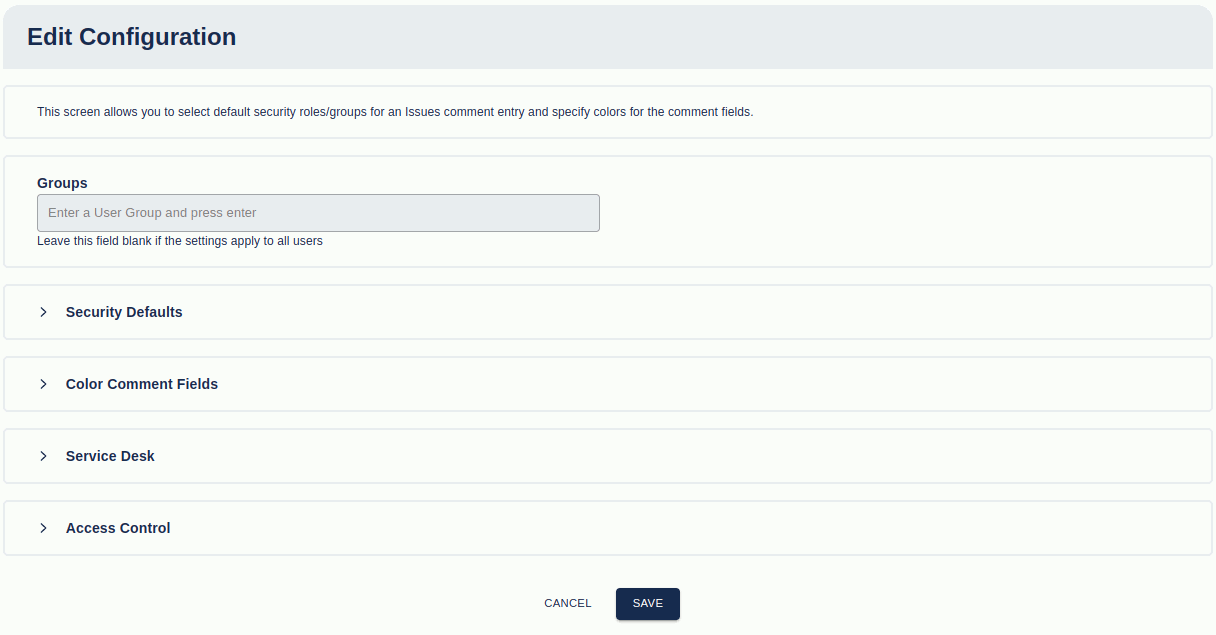
Clicking on the Add button or Edit (pencil) icon will show the following page.
At the top of the edit configuration page is the Groups. If this is empty then the configuration applies to everyone (assuming an earlier configuration isn’t found first). You can also add one or more user groups to this list and the configuration will only apply to users that are in one or more of those groups.
Below the Groups field are four sections: Security Defaults, Color Comment Fields, Service Desk and Access Control. These sections can be expanded/collapsed by clicking on the section title.
Security Defaults
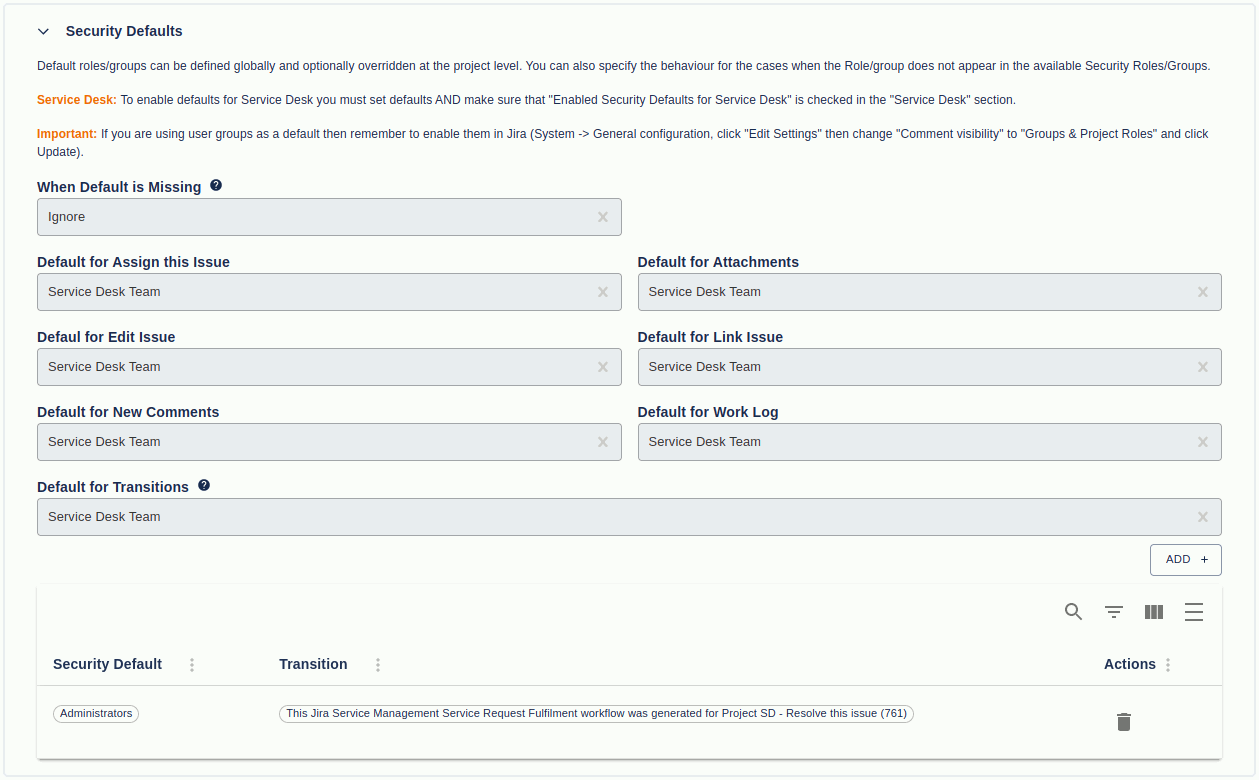
The Security Defaults section has the following fields.
At the top of this area is a “When Default is Missing” field that says what to do when a default is not found. The defaulting of security roles is dependent on the role being available to the project and/or user. If the role isn’t present then the plugin will follow the rule defined in the “When Role is Missing” field. The options are:
Ignore – The default will be viewable to all users
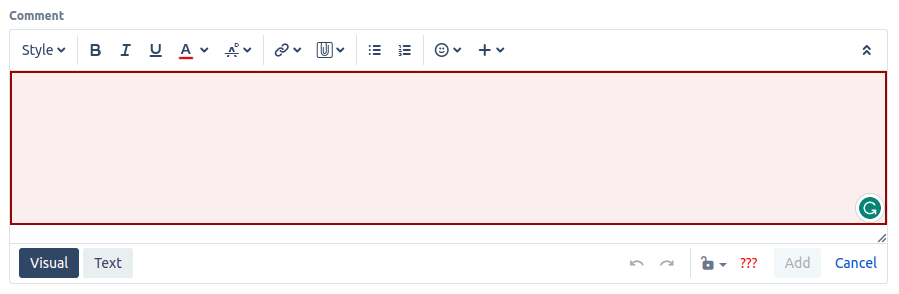
Force Selection – The user is forced to enter a role (only if there is a comment) before the comment is added. An example of a screen with a forced selection is shown below.
Next, the user gets the option to specify defaults for comments when assigning an issue to a user, adding an attachment, editing an issue, linking issues, new comments, logging work and transitioning an issue to a different status.
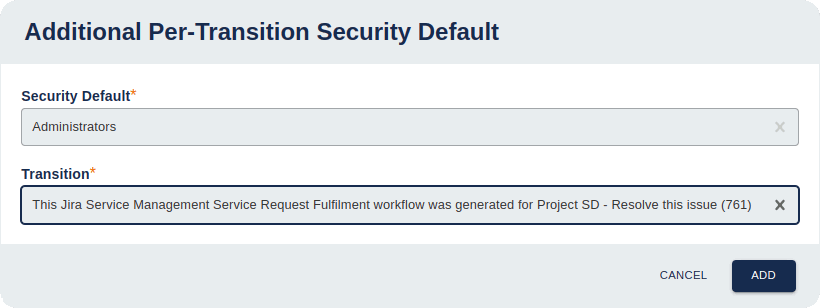
For transitions, there is a general default security level and the option to additionally add per-transition default by clicking on the Add button. This will open the dialog shown below. Once a per-transition default has been added it can be removed with the delete button.
Color Comment Fields
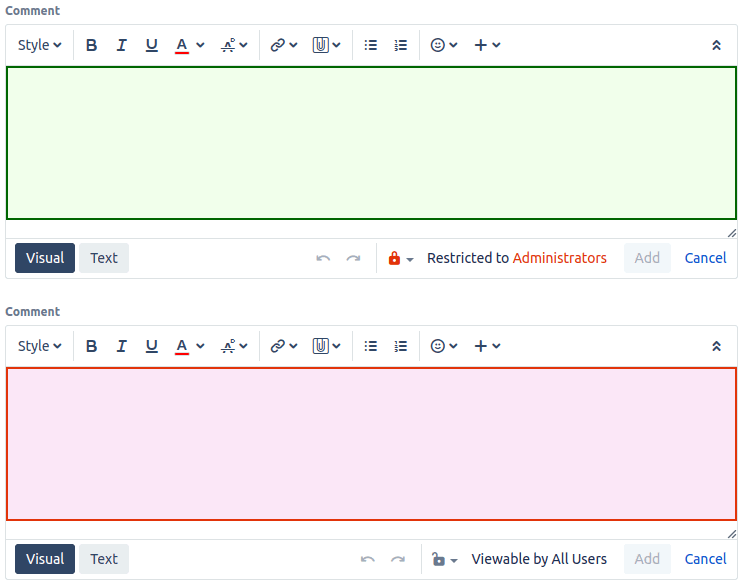
Comment coloring can be used to highlight if a comment is “Viewable to all users” or if restrictions have been put on the comment. Colors can be specified for background and/or border colors. An example of two different colored comment boxes is shown below.
Service Desk
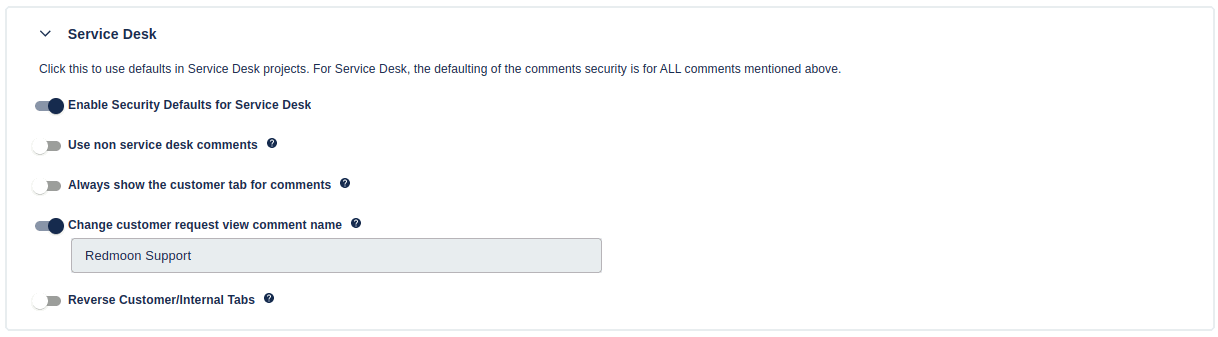
If you want a configuration to apply to Service Desk then you need to make sure that the “Enable Security Defaults for Service Desk” is checked (that is the default for new configurations). It is possible to have some configurations active for Service Desk and others not.
There are a few options that are specific to Service Desk. These options are:
Use non service desk comments: If this is checked then Service Desk projects will display the standard Jira comment field (so no customer/internal tabs)
Always show the custom tab for comments: If there is a configured default for the comment then Comment Security Default will alway show the internal tab (with the selected default). If this is checked then the Customer tab will always be shown by default
Change customer request view comment name: If this is checked then any internal comments shown in the customer request view (also referred to as the customer portal) will have the name shown below this field, rather than the name of the user that created the comment.
Reverse Customer/Internal tabs: This changes the order of the Customer/Internal tabs so the Internal tab is first
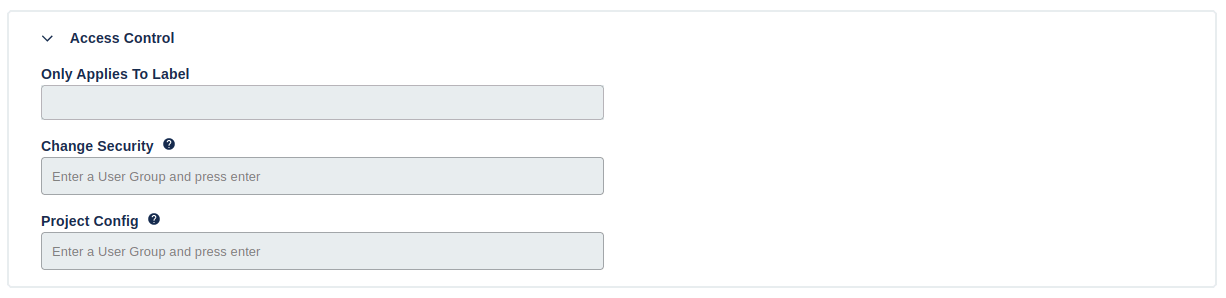
Access Control
Access Control has three options:
Only Applies To Label allows to only make a configuration use defaults and colors if there are labels in the issue that match one of those specified in this field.
For Change Security you can specify user groups that restrict who can change the security level. If a user is in the group then they will be able to change the security and if they are not in the group they won’t be able to. If no user groups are specified then everyone can change the security level.
Project Config allows you to specify which users have access to the project-level configuration pages that are in each project. If this is blank then anyone with project admin access can view the configuration page. If there are one or more groups then only users in one of those groups will be able to view the page.
Project Settings
The default security level can also be specified for each project. This allows for variations of defaults depending on the requirements of each project.
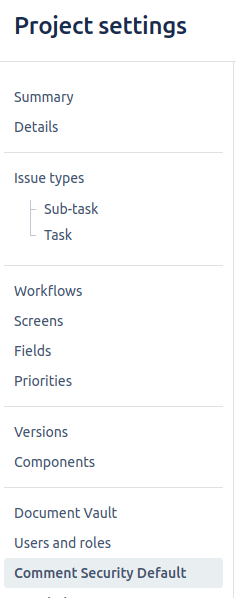
The project configuration can be found in the projects admin section under Comment Security Default.
The look and functionality of the project page are identical to the global configuration page so please see that section for details.
For defaults, the project configuration is always checked first. If there are no configurations that match the users’ groups and there are no default configurations then Comment Security Default will check the global configuration,
Jira Agile
Comment Security Default supports defaulting values for Jira Agile (Greenhopper). The same comments are defaulted using the same settings as for an Issue.
Bulk Editing and Transitions
Defaults are treated differently for bulk editing of issue or bulk transitioning of issues. For this functionality, we are unable to determine which issues are involved in the bulk update. All comments in bulk changes are shown as ???. This will force the user to set the security level if they enter a comment. If the global defaults for the transition and/or edit issue checkboxes are NOT ticked then the security is all users.
For coloring of the comment field, the global settings will be used. If there are no global settings then the coloring will not be set.