








Issue Mover Rules
Effortlessly move issues to another project without having to know anything about the move. Move Issues manually or automatically
To add Issue Mover Rules to project, navigate to the Project Settings under Apps section and click Issue Mover Rules.

This page is a list of all rules for moving issues and the rules only apply to issues being moved from this project. Issues can be moved automatically or manually.
A move can be between two different projects or within a project. If it is within a project then Issue Mover will just be updating fields.

On the right-hand side of each Issue Mover Rule are three buttons. The pencil icon indicates that we can edit the rule. The next icon displays the history of when the rule was run and any problems that occurred, and the trash icon allows you to delete the rule.
Note: If multiple rules are created for a project, the first rule that matches the condition will be executed first.

Add or Edit Issue Mover Rules
An Issue Mover Rule can be added by clicking the “Add +” button on the upper right of the Issue Mover Rules page

Move Details
In this section of the page, you should enter a meaningful name that clearly describes the purpose of the rule.
If you want a comment to be added to the issue once moved, then select “Add Comment on Move”. The comment will say that the issue has been moved and says the issue key that it used to have.
The target project specifies the destination project where the issue will be moved to.
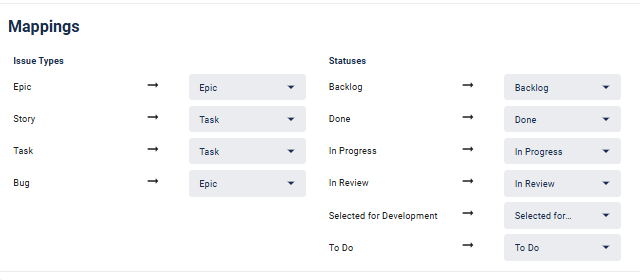
Mappings
It specify which field values are mapped to in the destination project. Mappings can be specified for issue types, statuses, components and fix versions. The latter two only show if there are values in the project being moved from


If a status is in both projects then you can’t change the status (so it is disabled). This is a restriction enforced by Jira, not Move It. If it isn’t then you have to select a mapping (which is the bottom two)

Automation
You can enable/disable automatically running the rule by turning on the “Run automatically” toggle. Automation requires at least one condition to be present. Rules that have do and don’t have automation can be used to manually move issues, see the Manually Move Issues section below.
When automation is turned on the automation conditions will be checked and if they match the current issue then the issue will be automatically moved based on the details and mappings specified in this rule.
The Test Field Value button is used to add another condition. Each condition allows you to specify a field and value(s) you want to match / not match.
If Run automatically is not turned on then the rule will only be available to manually move an issue.

The example shown above, when automation is turned on, will be applied when any issue with the assignee set to “Joan Lanto”. That Issue will be moved from the current project to the “Joan Doc Project” project. All field values for issue types and priorities are copied exactly except for the Story issue type, which will be changed to Task in the destination project.
Manually Move Issues
The example shown above, when automation is turned on, will be applied when any issue with the assignee set to “Joan Lanto”. That Issue will be moved from the current project to the “Joan Doc Project” project. All field values for issue types and priorities are copied exactly except for the Story issue type, which will be changed to Task in the destination project.

Once you click “Move It To”, a window will appear where you can select the Move It Rule you want to use.

In the Move It To window, choose the appropriate rule from the dropdown list, After selecting the rule, click Move It.

The issue will then be moved to the target project and you will see a Rule Executed confirmation message at the bottom left of the screen.
The updated issue details will be displayed, showing the changes that were made.
An email notification will be sent upon successful execution of the rule. This notification is part of Jira’s standard functionality.

Built for your team
How teams in specific roles use Move It, and the problems it solves for each of them:
- Move It for ITSM Teams ITIL-grade ticket routing on Jira - manual and automated, with full context preservation across incident, problem, change and request queues.
- Move It for Jira Admins Move issues between Jira projects automatically - by rule, by JQL, or on workflow transition - with field mapping that doesn't break the destination.
- Move It for Support Teams Routing tickets from support to engineering without losing the customer context - manually or automatically.