








User Guide
Delegate individual admin pages to user groups so you can share the workload without handing out Jira administrator rights.
Secure Admin for Jira Cloud provides its own versions of sixteen administration pages: twelve site-wide Jira admin pages (Custom Fields, Fields, Groups, Issue Security, Issue Types, Mail Servers, Notifications, Permissions, Screens, Users, View System Info and Workflows) and four Space admin pages (Components, Roles, Screens and Versions). You choose, page by page, which user groups may use each one. Members of those groups can then do that work from Secure Admin even though they are not Jira administrators and cannot open Jira’s own version of the page.
Access is decided by group membership alone. A user’s other Jira permissions are never consulted, being a site administrator grants nothing by itself, and there is no super-user list. Membership is checked live, so a change to a Jira group takes effect the next time the person loads a Secure Admin page.
When a user opens Secure Admin without being in a group that has been granted at least one page, a message tells them access is denied. Due to limitations of the Atlassian development framework, we cannot hide the entire page from users who do not have access.

Configuring Access
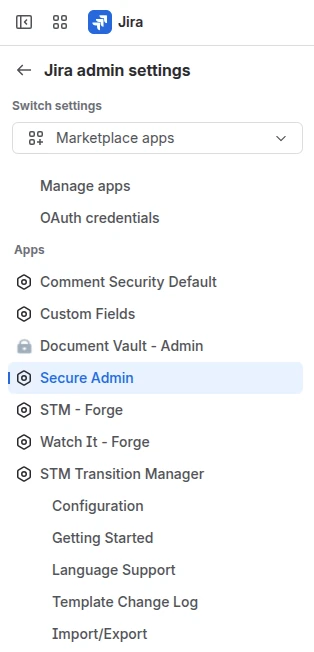
By default nobody can use any Secure Admin page. Access is granted by adding user groups to each page on the Global Configuration screen, found under Jira settings, then Apps, then Secure Admin. Only Jira administrators can open it.
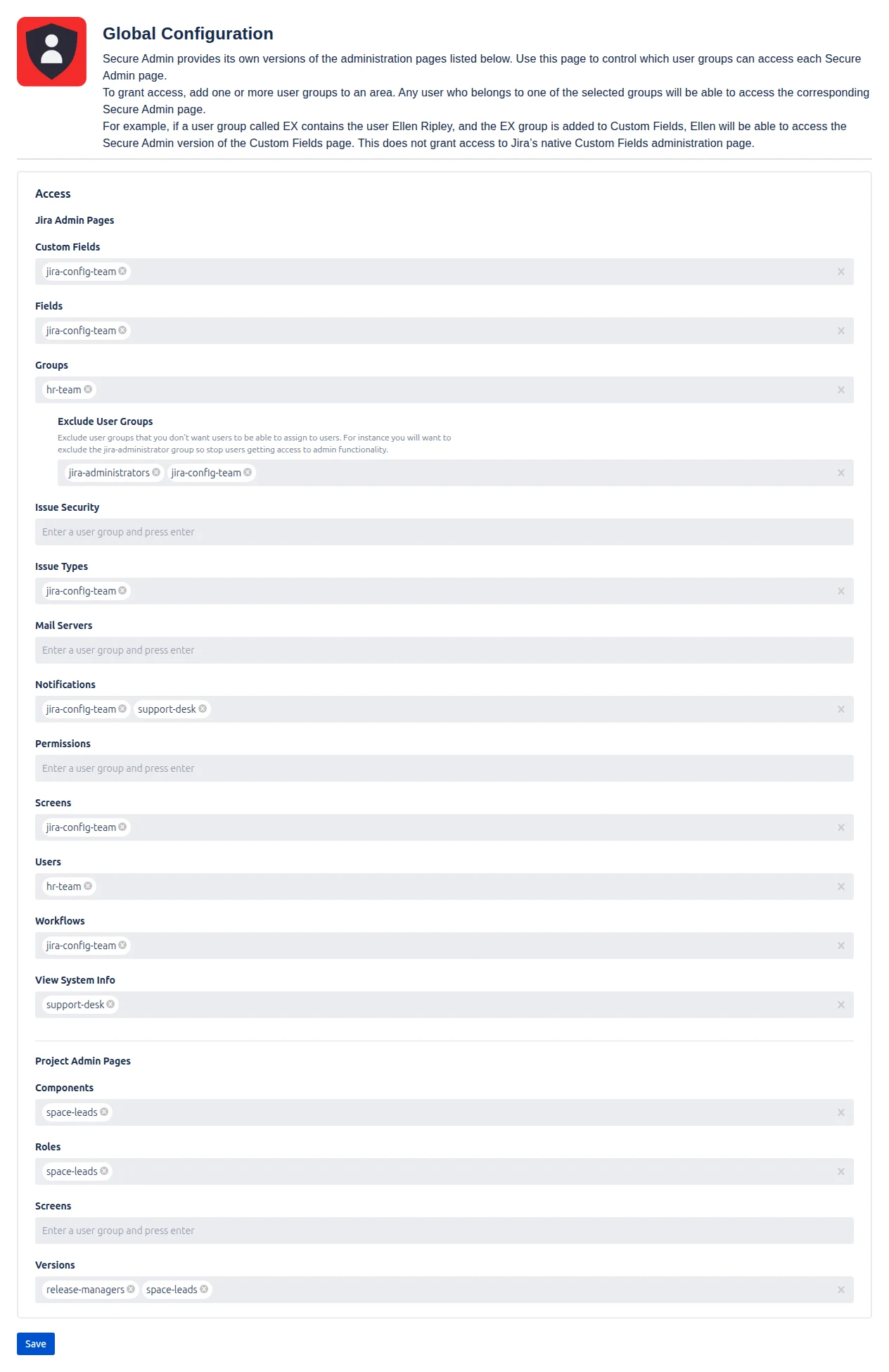
The global configuration page looks like the following.
Jira Admin Pages
The first section lists the twelve site-wide pages. Under each page name is a group picker. Click in it, start typing a group name, choose the group from the list and press Enter. Add as many groups as you like. Anyone who belongs to at least one of the groups listed under a page can use that page.
In the example above, members of jira-config-team can use Custom Fields, Fields, Issue Types, Screens and Workflows, members of hr-team can use Groups and Users, and members of support-desk can use Notifications and View System Info. Issue Security, Mail Servers and Permissions have no groups, so nobody can use them.
Granting a page here does not give anyone access to Jira’s native administration screens. It only opens the Secure Admin version of the page.
Exclude User Groups
When at least one group has been added to the Groups page, a second picker appears beneath it labelled Exclude User Groups. Groups listed here are shown as excluded on the Secure Admin Groups page and nobody can be added to them from there. This can be used to prevent users adding themselves to groups that give them access to Secure Admin pages.
Always list your Jira administrators group, and any group named elsewhere on this screen. Otherwise a user of the Groups page could add themselves to a group and widen their own access. In the example, jira-administrators and jira-config-team are excluded, so members of hr-team can manage every other group but cannot promote anyone into those two.
Space Admin Pages
The second section, which the screen labels Project Admin Pages, lists the four pages that act on a single Space: Components, Roles, Screens and Versions. They are granted in the same way. In the example, space-leads can manage Components, Roles and Versions, and release-managers can also manage Versions.
Save
Click Save at the bottom of the screen. A confirmation message appears and the new settings take effect immediately. To remove a group, click the cross on its chip and save again. If a group is renamed in Jira, remove the old name and add the new one.
Using Secure Admin
Inside a Space
Open any Space and choose Secure Admin from the horizontal Space menu.
If they don’t have access to any Secure Admin pages then they will be shown the following message:
If the user has access to any screen then the left-hand navigation lists only the pages the current user’s groups have been granted, split into Jira Admin Pages, which act on the whole site, and Project Admin Pages, which act on the Space you are in. The first page in the list opens automatically.
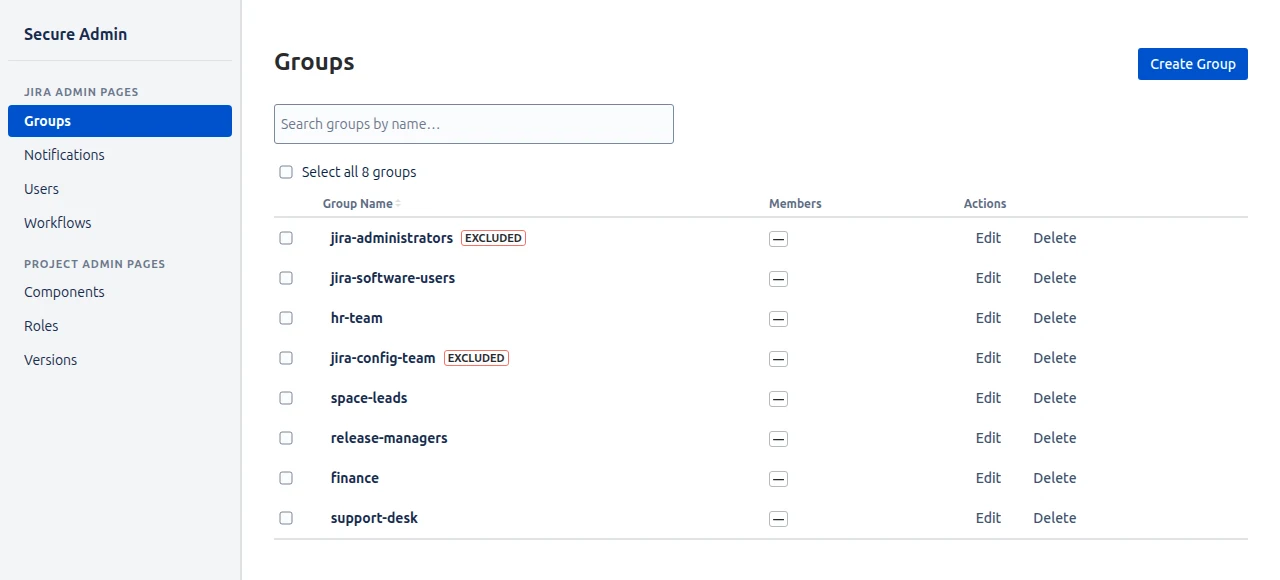
Here a member of hr-team and space-leads sees Groups, Notifications, Users and Workflows in the first section and Components, Roles and Versions in the second. On the Groups page the two excluded groups carry an Excluded marker and cannot be assigned. Pages the user has not been granted are not shown at all.
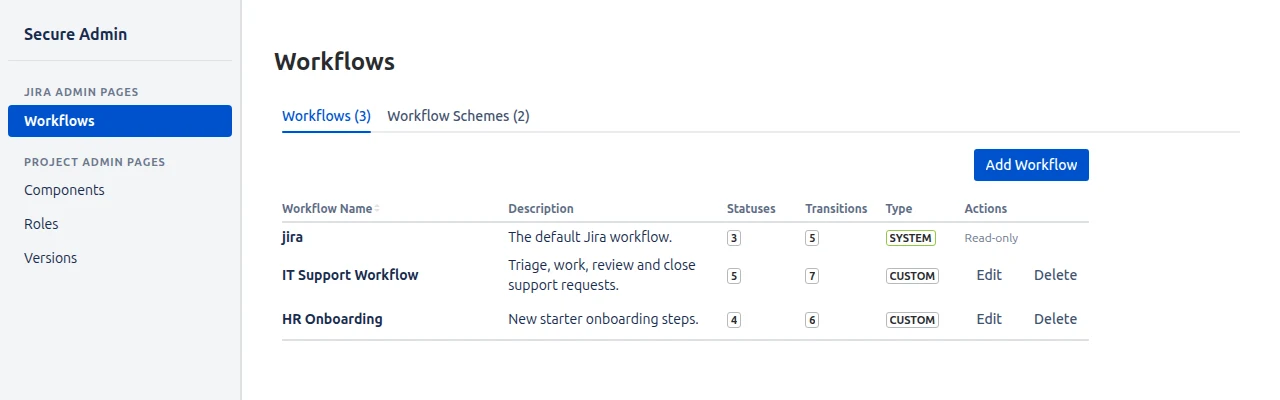
A user in a different group sees a different list. Below, a member of jira-config-team who has been granted Workflows and the three Space pages sees exactly those four entries. The Workflows page lists every workflow and workflow scheme on the site, and lets the user add, edit and delete them without being a Jira administrator.
The Jira Admin Pages
Within the Space Secure Admin page and Apps Menu page, the following Jira Admin pages will be available if the user has access to them.
| Page | What it lets you do |
|---|---|
| Custom Fields | List custom fields, edit them, add contexts and delete fields. |
| Fields | Browse all system and custom fields. Read-only. |
| Groups | Create and delete groups and manage their members, subject to Exclude User Groups. |
| Issue Security | Manage work item security schemes, their levels and members. |
| Issue Types | Manage work item types and schemes, including defaults. |
| Mail Servers | Informational only. Jira Cloud has no mail server settings for an app to manage, so this page explains where email settings live in Jira Cloud. |
| Notifications | Manage notification schemes and the notifications in them. |
| Permissions | Manage permission schemes and the grants in them. |
| Screens | Manage screens, tabs, fields and screen schemes. |
| Users | Search users and add them to or remove them from groups. |
| View System Info | Read-only server information and configuration. |
| Workflows | Manage workflows and workflow schemes. |
The Space Pages
Within the Space Secure Admin page, the following Space Admin pages will be available if the user has access to them.
| Page | What it lets you do |
|---|---|
| Components (Space) | Create, edit and delete the Space’s components. |
| Roles (Space) | See every role and manage its members in this Space. |
| Screens (Space) | See which screens the Space uses for each work item type and manage their fields. |
| Versions (Space) | Create, edit, release and delete versions. |
From the Apps menu
Secure Admin is also available from the Apps menu in the top navigation. That page offers a dropdown of the site-wide pages the user has been granted. The four Space pages are not offered there, because no Space is selected.
Licensing
Secure Admin needs an active or trial licence. If the licence lapses, every Secure Admin page shows “App is not licensed.” until it is renewed. Your Global Configuration settings are kept.
Limitations
- Access is all-or-nothing per page. You cannot grant part of a page.
- Only Secure Admin’s own pages are covered. The app does not hide or restrict Jira’s native administration or Space admin screens or pages from other apps.
- Groups are matched by name, so a renamed group must be re-added.
- Exclude User Groups applies to the Secure Admin Groups page only.
Data and Privacy
Your Global Configuration settings are stored inside your own Jira Cloud site using Atlassian’s Forge storage. Nothing is sent to Redmoon Software or any third party.
Coming from Secure Admin for Data Center
The Data Center version hides parts of Jira’s existing administration screens. The Cloud version instead provides its own copies of specific pages and controls who may use them. There is no super-user list, no sub-tab restriction and no way to restrict other apps’ pages. See the Data Center user guide for how that version works.